Comparison
Spreadsheets Go a Long Way — Until They Don’t
Excel is great for keeping a short list. It reaches its limits when the team grows, quotes multiply and customer data comes with data protection obligations. See the difference side by side.
Start a 14-Day Free TrialSigns you have outgrown the spreadsheet
Nobody knows which file is current
Several copies of the same customer list circulate by email; nobody knows who changed which row.
Follow-ups live in people’s heads
When to call back about a quote sits in a cell comment or a rep’s memory; there are no reminders.
No price or discount control
Quotes are built from an old copy of the price list and discount limits cannot be enforced.
Everyone sees all the data
Anyone who opens the file sees every customer; personal data cannot be restricted by role.
Spreadsheets and CRModular side by side
| Excel / Sheets | CRModular | |
|---|---|---|
| Working as a team | Depends on file sharing and copies | One database; everyone sees the current record |
| Quote and price control | Prices copied by hand | Price books, tiered pricing, maximum discount and approvals |
| Follow-ups and reminders | Cell notes or a separate calendar | Tasks, cadences and required steps per stage |
| Sales pipeline view | Pivot tables built by hand | Stage board, probabilities and reports |
| Support cases and SLAs | A separate list, no timers | Cases from email, priority-based SLAs and breach flags |
| Permissions and privacy | Whoever opens the file sees everything | Record-level access with profiles, role hierarchy and sharing rules |
| Data protection (KVKK/GDPR-style) | Consent and deletion tracked by hand | Consent records, anonymisation on deletion requests, data inventory |
| History and audit | Limited version history | Record change history (who and when) |
| Cost | No extra licence | Subscription plan; 14-day free trial |
Spreadsheets are fine for one person and a short list. This comparison is about a team tracking customers and quotes together.
A pipeline instead of rows
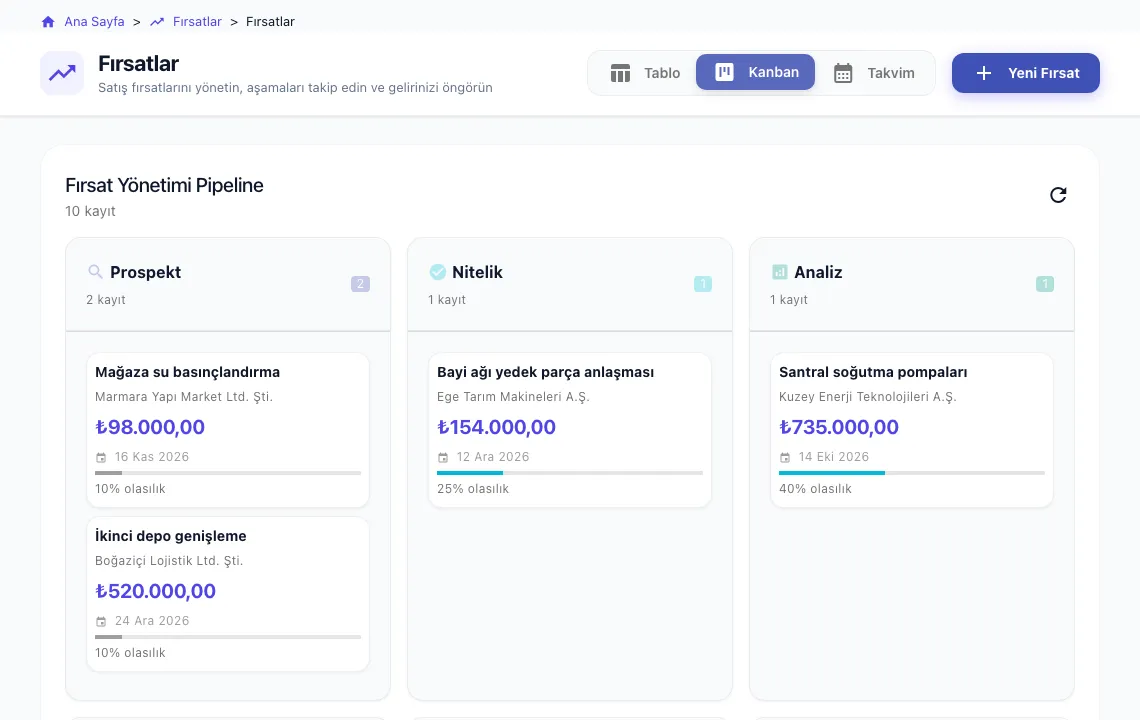
Opportunities appear on a board by stage, each card showing the customer, amount, close date and probability. The same data opens in table and calendar views.
Moving from Excel to a CRM in 4 steps
- 1Tidy up the columns
Split customers, contacts and deals into separate sheets and remove duplicate rows.
- 2Set a duplicate rule
For example match on tax number or email so the import does not create duplicates.
- 3Import in order
Products first, then accounts, contacts, leads and opportunities; check the field mapping in the preview.
- 4Move the team to one source
Archive the spreadsheet as read-only; new records are created only in the CRM.
Frequently asked questions
Can we import our existing spreadsheets?
Yes. Upload Excel or CSV files with the import wizard, check the field mapping in the preview and choose insert, update or “update if found, otherwise insert”.
Can we export data back to Excel?
Yes. Records can be exported to Excel from list views and from the data management screen.
At what team size does a CRM make sense?
There is no magic number. If two or more people edit the same customer list, you prepare dozens of quotes a month, or you must keep consent records for customer data, a CRM starts saving time.
Is the application available in English?
The CRModular application interface is currently in Turkish. This website and its documentation are available in English.
Let’s import your spreadsheet together
Try the import with your own customer list during a demo call.
Request a Demo